
Messaging Setup
Follow-ups and reply timing
How LeadWinner follow-ups nudge silent customers automatically, and the timing controls that decide when the AI is allowed to send messages for you.
A fast first reply wins the lead; a good follow-up wins the quiet ones.
Getting there: open Businesses, find your business card, and click “All Settings”.
Follow-ups — when the customer goes silent
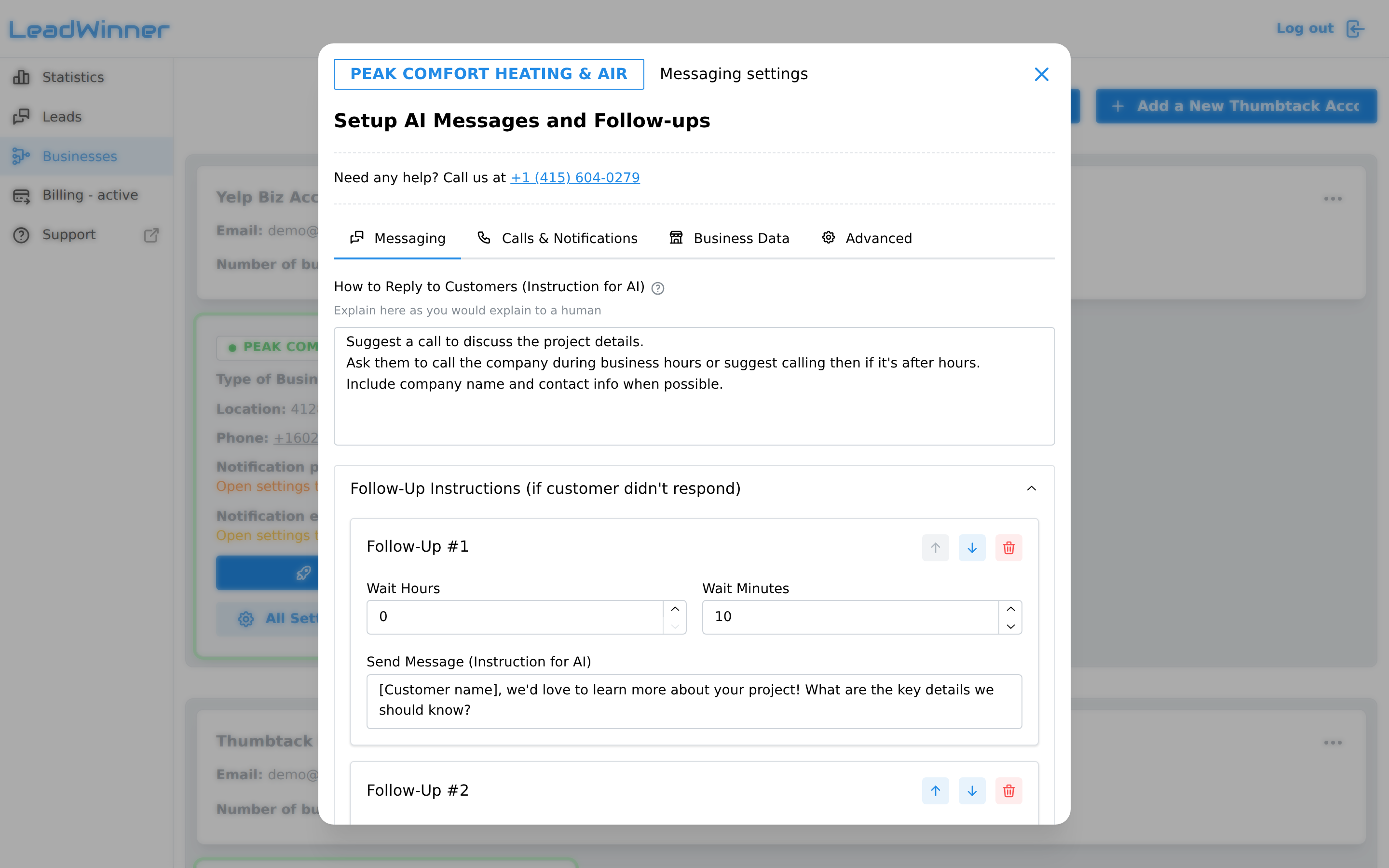
In the Messaging tab, open “Follow-Up Instructions (if customer didn’t respond)”. You can add up to 10 follow-ups, and reorder or remove them anytime. Each one has two fields:
- Wait Hours / Wait Minutes — how long to wait after the previous message. Use short waits for urgent trades where customers decide fast, and longer waits for jobs people shop around for.
- Send Message (Instruction for AI) — what the follow-up should say, written as an instruction (e.g., “Gently check if they’re still interested and offer a free estimate”).
How follow-ups behave
- The wait counts from the previous message, not from when the lead first arrived. A “2 hours” follow-up fires 2 hours after the last message in the conversation.
- They go out only while the customer stays silent — their whole job is reviving a quiet conversation.
- They don’t count against your AI response limit. A “1 message per lead” setting still allows follow-ups.
- Your manual reply stops them. By default, follow-ups stop as soon as you reply to the lead manually. If you want them to continue after a single manual reply, enable “Don’t Stop Follow-ups on First Business Reply” in Advanced → Messaging Rules — they’ll then stop only after you reply twice or more.
- A real phone call stops them. If auto-calls are enabled and a call with the customer connects for more than a few seconds, scheduled follow-ups for that lead are canceled — the conversation has clearly moved to the phone.
- They aren’t sent as texts. Follow-ups go through the platform conversation; the SMS channel sends only the one initial text. See Text messaging with customers.
- They respect your quiet hours. Nothing goes out during Non-Reply Hours.
Non-Reply Hours — when the AI stays silent
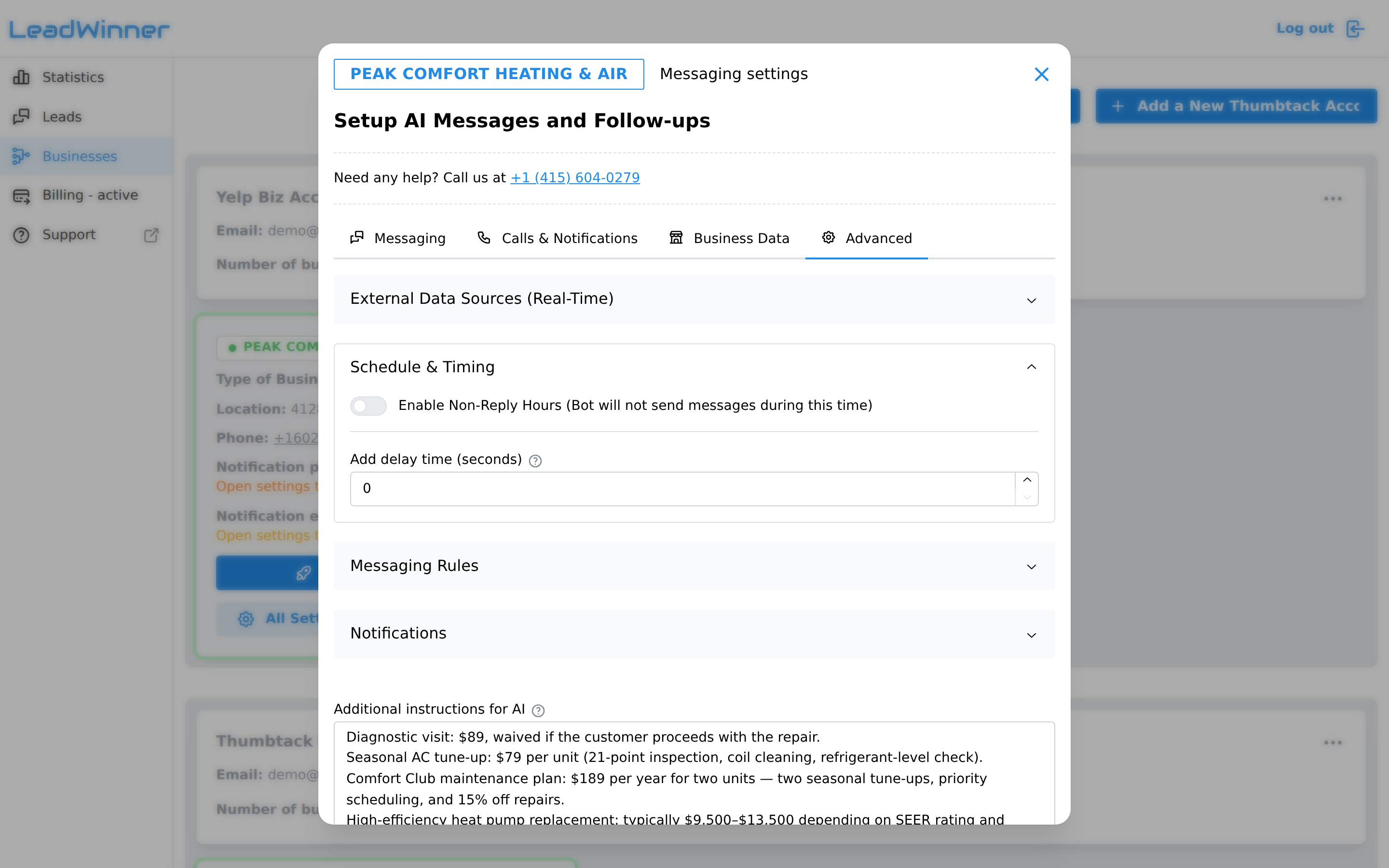
In Advanced → Schedule & Timing, switch on “Enable Non-Reply Hours”. Then:
- Pick your business timezone — it applies to all time-based features.
- For each weekday, set the “Off Hours From” and “Off Hours Until” times.
Heads-up on overnight hours: each day’s setting applies to that day only. “From 19:00 until 09:00” blocks the evening and the morning of the same day. To cover a real night (7 pm to 9 am next morning), set the evening block on one day and the morning block on the next.
When a customer writes during off hours, the AI skips the reply and marks it in the lead’s timeline: “AI reply skipped — outside reply hours.”
Reply delay
Also under Schedule & Timing: “Add delay time (seconds)”. Replies normally go out after a short processing time of a few seconds. Use a delay when an instant answer would feel too robotic for your trade — a small human-feeling pause before each reply.
If something’s not working
- A follow-up didn’t go out. Check the lead’s timeline first — a manual reply, a connected call, or your quiet hours may have stopped it (see “How follow-ups behave” above).
- Nothing goes out at certain times. That’s your Non-Reply Hours working — the timeline marks each skip.
- The AI didn’t reply at all. Run The AI didn’t reply — checklist.
Questions about timing behavior? Contact support — we’ll trace any specific lead for you.