
How the AI Responder Works
How the AI responder works
When the AI replies to a lead, what the message limit means, how follow-ups fit in, and where you stay in control — the responder's logic explained simply.
When a new lead arrives from a connected source, LeadWinner generates a reply based on your business profile and instructions, and sends it from your own business account — usually within seconds. Your customer sees a regular message from your business. In your own lead view, AI messages carry a small “Sent by LeadWinner” tag that only you can see.
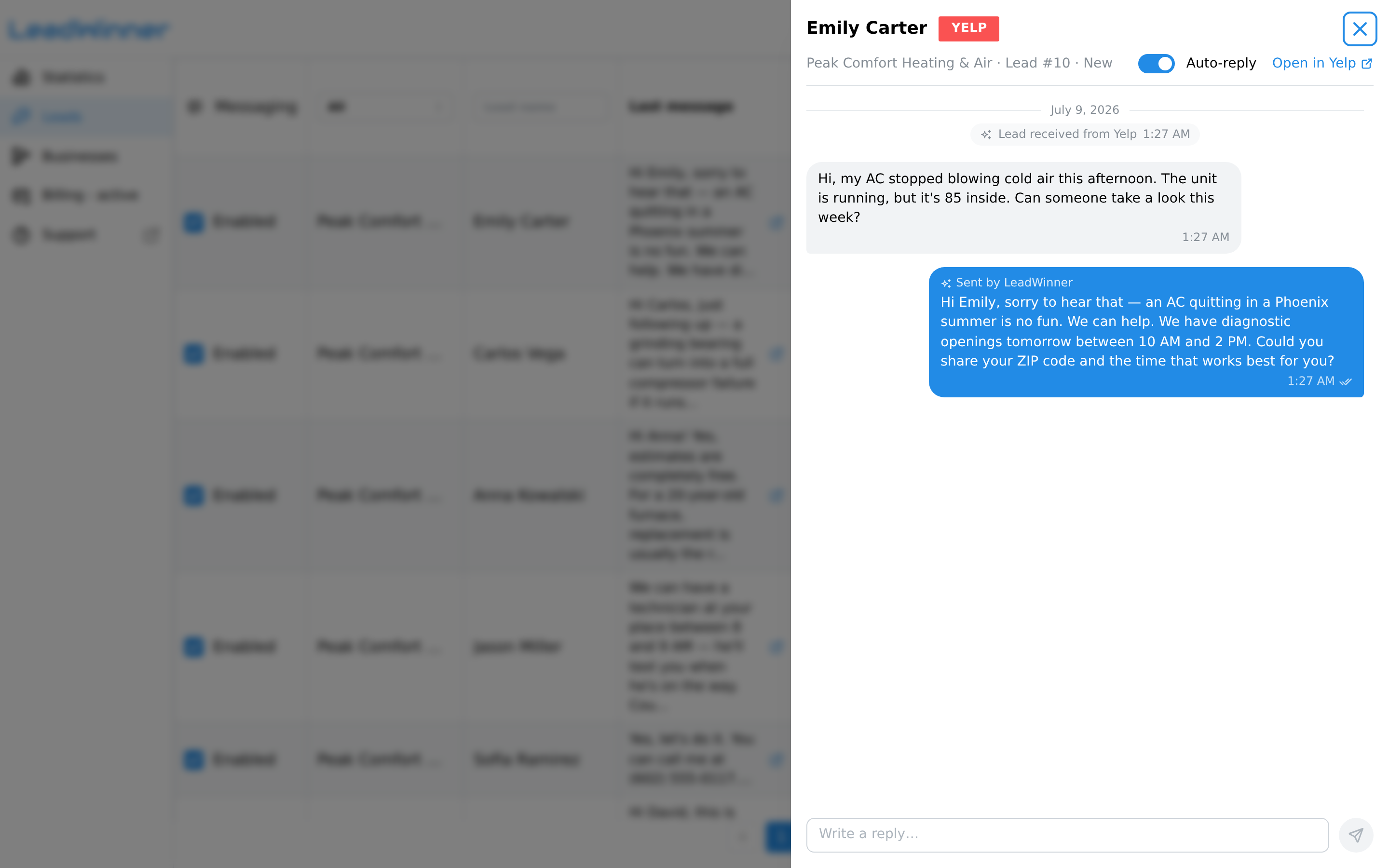
When the AI replies
The AI answers a lead when all of these are true:
- The business is active (green “Status: Enabled” on the Businesses page).
- The lead’s “Auto-reply” switch is on (it’s on by default; see Pause auto-replies).
- The reply doesn’t exceed your AI response limit for that lead (see below).
- It isn’t inside your configured Non-Reply Hours (see below).
- You haven’t recently replied manually — after a manual response, the bot pauses for a period you control (“Pause bot after manual response” in Messaging Rules).
The message limit — 1 reply per lead by default
By default, the AI sends one message per lead: the initial response. It won’t carry on a back-and-forth conversation unless you allow it. This keeps you in control — the AI wins you the first-response speed, and you take it from there.
To change this, open All Settings → Advanced → Messaging Rules and adjust “Limit Outgoing AI Responses Per Lead (excluding follow-ups)” — anywhere from 1 up to 50. In the Quick Setup wizard, the same choice appears as the “Continue AI Conversation After Customer Replies” switch.
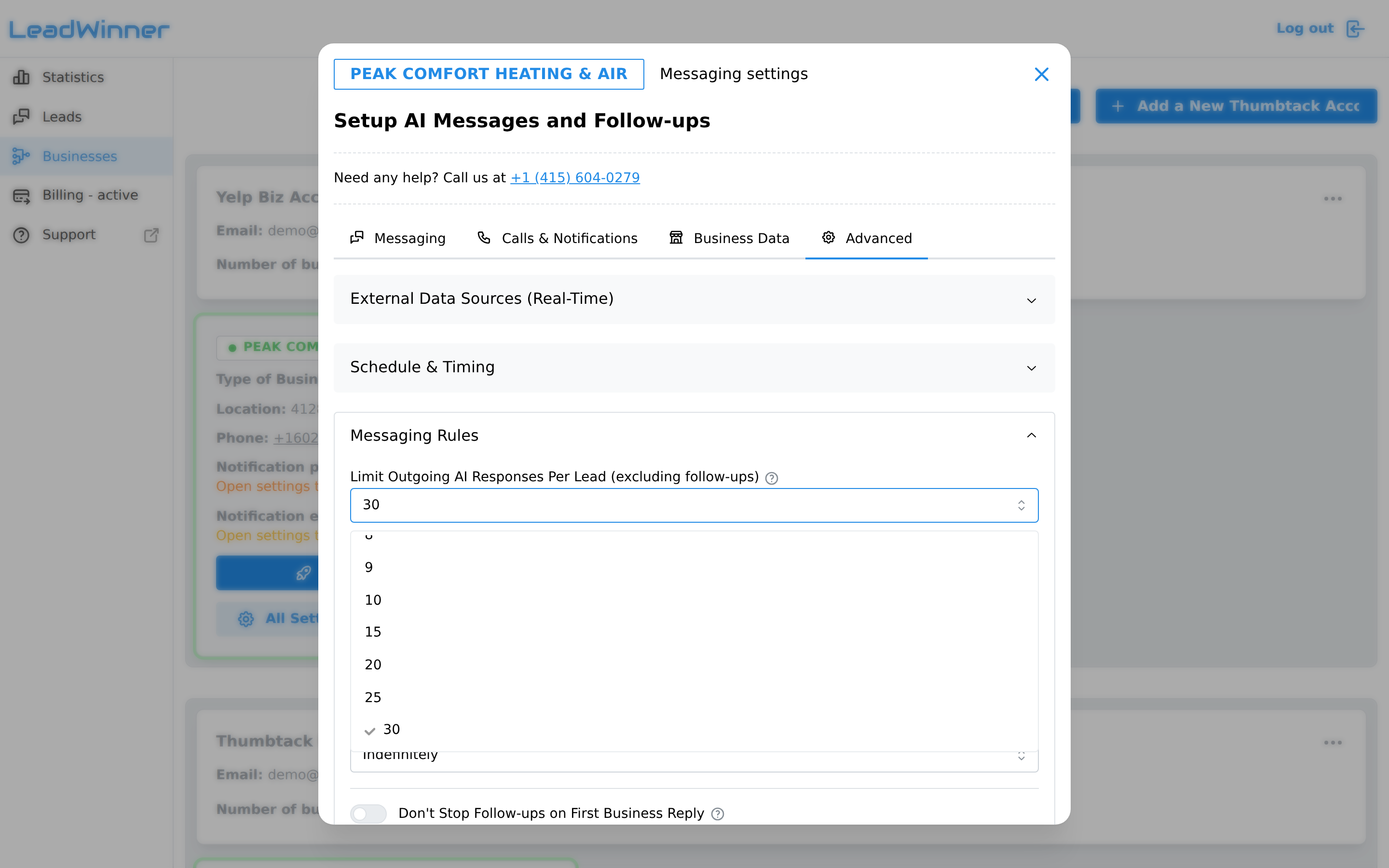
The “limit reached” notification
Turn on “Notify me via SMS / Email when limit is reached” (in the same section) and we’ll alert you whenever the AI skips a customer message because the limit was hit. That’s your cue to jump in and reply yourself — from the lead’s page in LeadWinner or from the platform’s inbox.
Follow-ups
Follow-ups are separate messages the AI sends when a customer hasn’t responded — they do not count against the response limit. You define each one: how long to wait and what to say. See Follow-ups and reply timing.
Non-Reply Hours
If you don’t want messages going out at certain times (overnight, weekends), enable Non-Reply Hours in All Settings → Advanced → Schedule & Timing. During those hours the bot stays silent; the lead’s timeline shows “AI reply skipped — outside reply hours” so you always know why.
Pausing
You can pause the AI for a single lead (the “Auto-reply” switch on the lead) or for a whole business (“Deactivate” on the Businesses page). Details: Pause auto-replies.
How it behaves in practice
The fine print that answers most “why did it do that?” questions:
- Follow-ups don’t count against the limit. A “1 message per lead” setting still allows every follow-up you’ve configured.
- The AI never talks over you. If your message is the latest in the conversation, it waits for the customer’s next message.
- A manual reply pauses the bot for that lead — indefinitely by default, adjustable in Messaging Rules down to no pause at all.
- Silence is never a mystery. Open the lead — the conversation view doubles as an event log showing every message, every notification, and why something didn’t happen.
If the AI stayed quiet on a lead
Run The AI didn’t reply — checklist — six checks cover almost every case, and most take seconds.
Questions about how the responder behaves? Contact support — we’ll trace any specific conversation for you.