
Getting Started
Create your LeadWinner account
Create your LeadWinner account in about a minute: sign up with your email and a 6-digit code or with Google, then connect your first lead platform.
LeadWinner replies to your new leads for you — automatically, within seconds, from your own business account on Yelp, Thumbtack, or Google Local Services Ads. The first step is creating an account — it takes about a minute.
Sign up
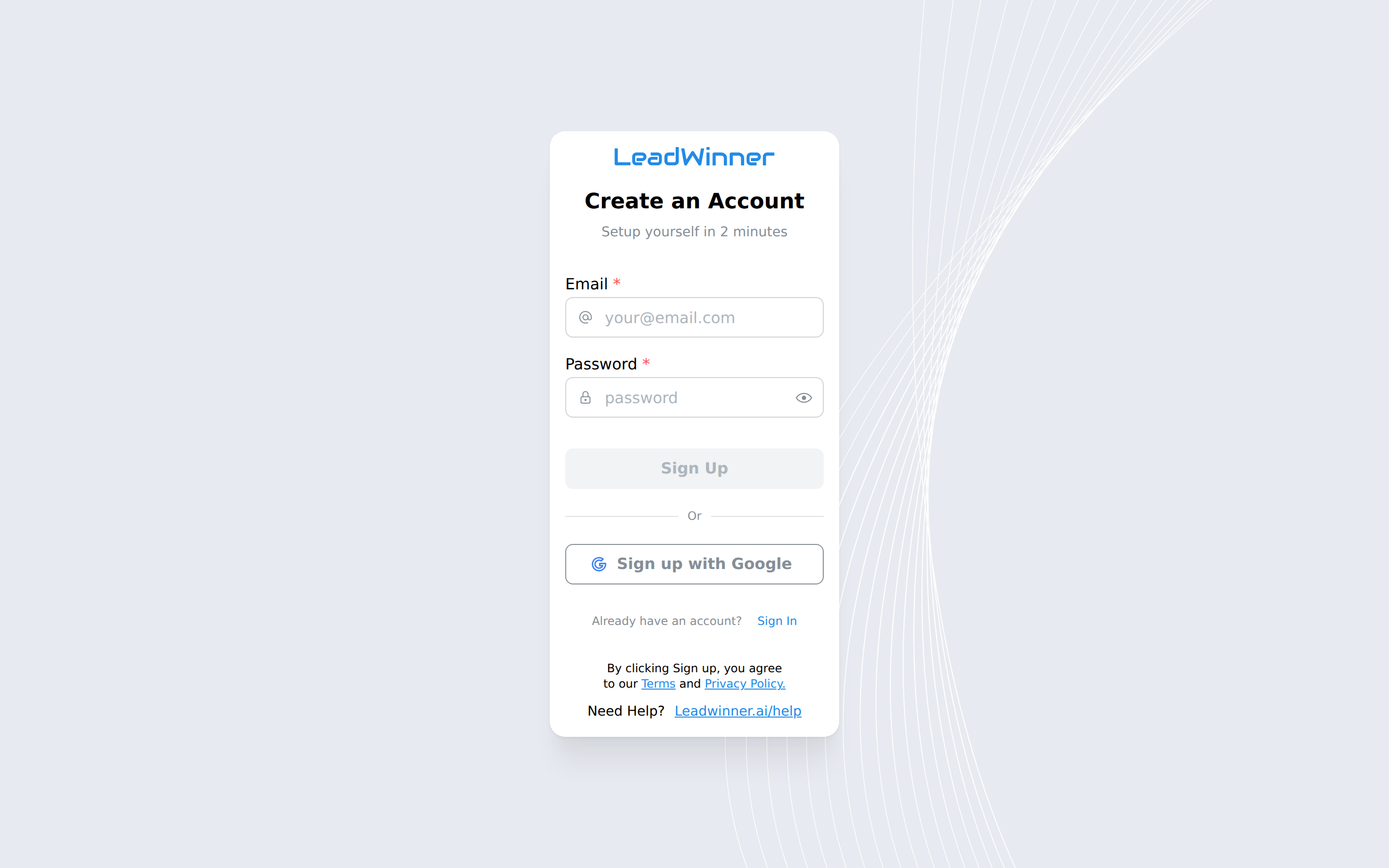
- Go to app.leadwinner.ai/auth/signup.
- Choose how to sign up:
- Email — enter your email and a password. We’ll send a 6-digit verification code to your inbox; enter it to confirm your address.
- Google — click the Google button and pick your account. No separate password needed.
- That’s it. You’ll land in your LeadWinner dashboard.
What you’ll see first
Your dashboard opens on the Businesses page. This is where you connect the platforms your leads come from:
- Yelp — connect your Yelp business account. See Connect your Yelp account.
- Thumbtack — connect your Thumbtack Pro account. See Connect your Thumbtack account.
- Google Local Services Ads — connect with your Google sign-in. See Connect Google Local Services Ads.
Connecting a source takes a couple of minutes, and you don’t need to share your platform password with us — you sign in on the platform’s own site and simply approve the connection.
Trial and billing
Your first business starts with a free trial, so you can watch the AI handle real leads before you commit. A payment method is required to start the trial; you can cancel anytime during it. See How the trial and billing work for details.
If something’s not working
- The 6-digit code didn’t arrive. Check your spam folder, and make sure the email address is spelled correctly — the code goes to exactly what you typed.
- You’d rather not manage another password. Use the Google button instead — same account, no password to remember.
Next steps
- Connect your first source.
- Activate your business and run the Quick & Easy Setup wizard — see What happens after you connect.
- Watch replies go out on the Leads page.
New to the terms the app uses? See Key concepts.
Questions about signing up? Contact support — include the email you signed up with, and we’ll take a look.