
Getting Started
What happens after you connect a source
You've connected a platform — now what? Activate your business, run Quick Setup, brief the AI, and watch it answer your first lead within seconds.
Once a source is connected, your account appears as a card on the Businesses page, with each business listed inside it. Two more steps and the AI starts responding.
1. Activate your business
Every business starts inactive. Click “Activate” on the business card (or “Activate free trial” if this is your first business) to turn the auto-responder on. Active businesses show a green “Status: Enabled” dot; inactive ones show gray.
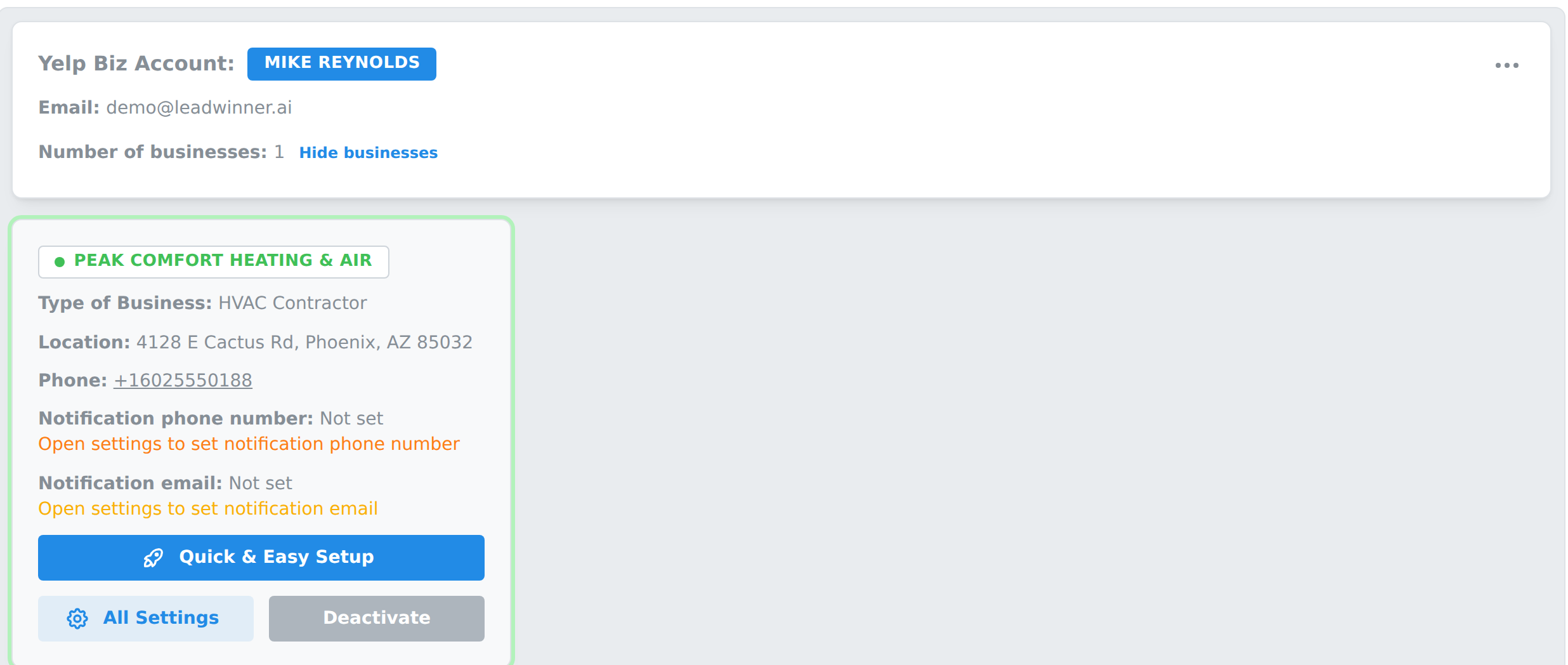
Activation is also your pause switch: click “Deactivate” anytime to stop the AI for that business. See Pause auto-replies.
2. Run Quick & Easy Setup
Click “Quick & Easy Setup” on the business card. The wizard walks you through the essentials, one step at a time:
- Notifications from LeadWinner Bot — where to send alerts about your customers (phone and email).
- 2-Way Auto-Dial Calls — turn new leads into incoming calls automatically. See Auto-calls.
- Send One AI Generated SMS to Customer — text the customer as soon as a lead arrives. See Text messaging with customers.
- Business Phone We Share with Customers — the number the AI may mention in conversations.
- Continuous Conversation — should the AI keep the conversation going after the customer replies, or send just the initial response? See How the AI responder works.
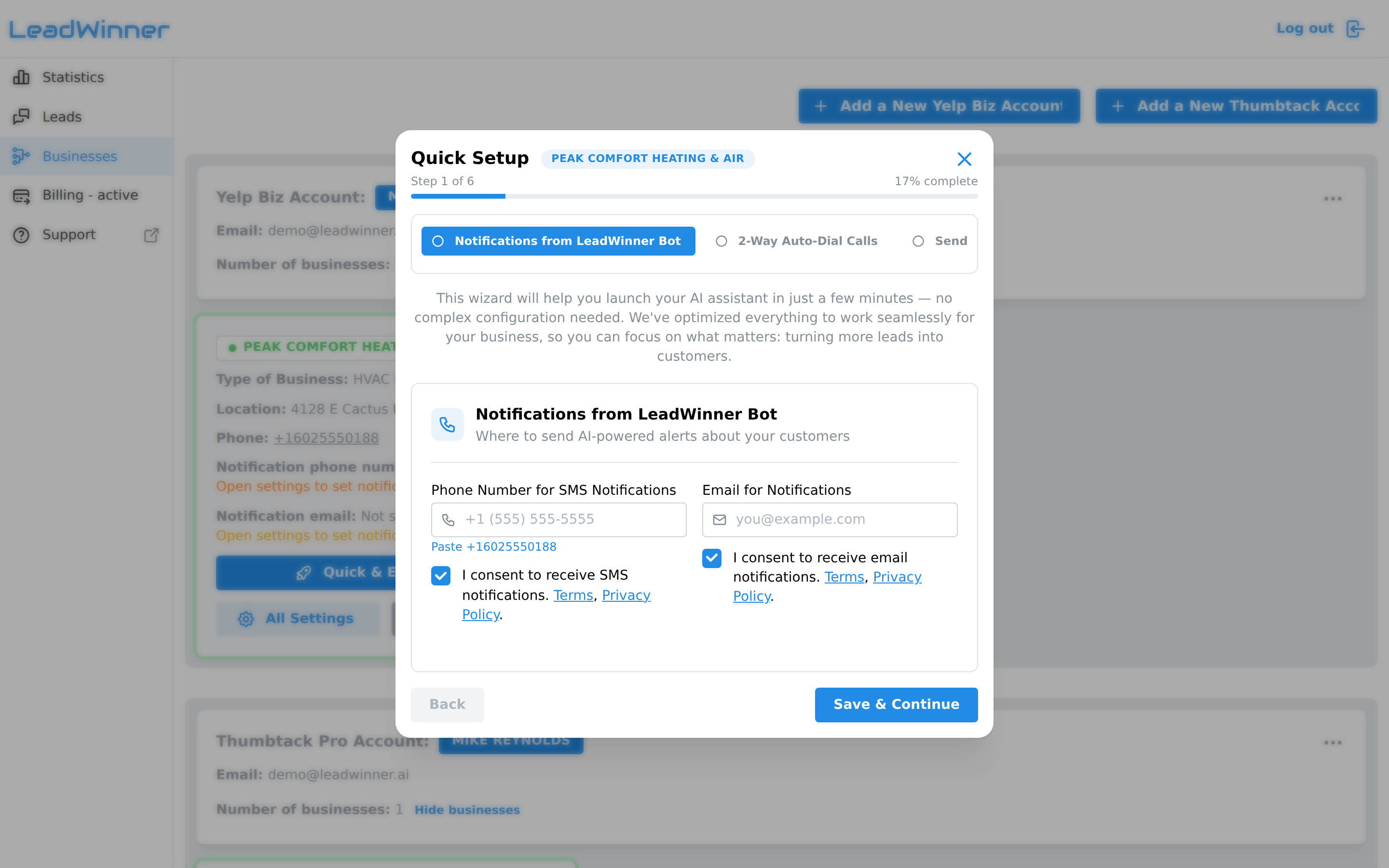
Each step saves as you go. The final step activates the business if you haven’t already.
3. Watch your leads come in
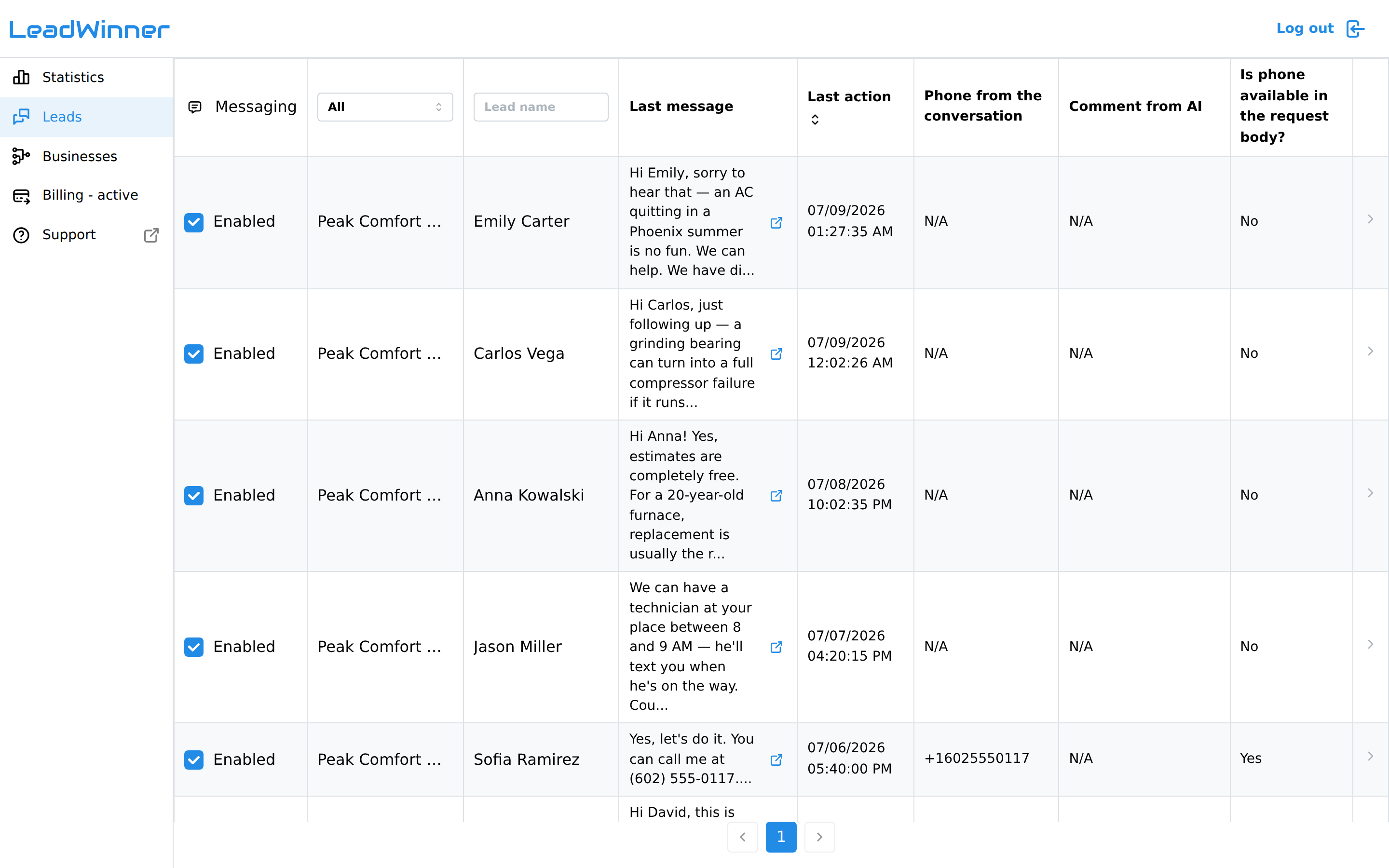
From now on, new leads from the connected platform appear on the Leads page, and the AI replies from your own business account — your customer sees a regular message from your business. Open any lead to see the full conversation and a timeline of everything that happened: messages, notifications sent to you, calls, and more.
Fine-tune later
For everything beyond the wizard — business details the AI uses, reply instructions, follow-ups, and reply hours — open “All Settings” on the business card. Start with Set up the AI’s replies — what to write.
If something’s not working
- The business card shows a reminder about missing details. Some platforms send only basic business information — open “All Settings” → Business Data and fill in the gaps so the AI answers accurately.
- The status dot stays gray. The AI is off until you click “Activate” (or “Activate free trial” for your first business).
- The first lead hasn’t shown up. See A lead didn’t appear.
Questions about finishing setup? Contact support — include your account email, and we’ll take a look.