
Getting Started
Connect your Thumbtack account
Connect your Thumbtack Pro account to LeadWinner through Thumbtack's secure authorization page — done in about two minutes, with replies starting in seconds.
LeadWinner connects to Thumbtack through Thumbtack’s official authorization flow. You sign in on Thumbtack’s own site and approve the connection — we never see or store your Thumbtack password. The whole thing takes about two minutes.
Before you start
- You need access to the Thumbtack Pro account that receives your leads.
- If someone else owns the account, you can send them an authorization link instead — see below.
Steps
Getting there: sign in to your dashboard and open Businesses.
- Click “Add a New Thumbtack Account”.
- A window titled “Connect your Thumbtack Account” opens. Click “Add an account from Thumbtack”.
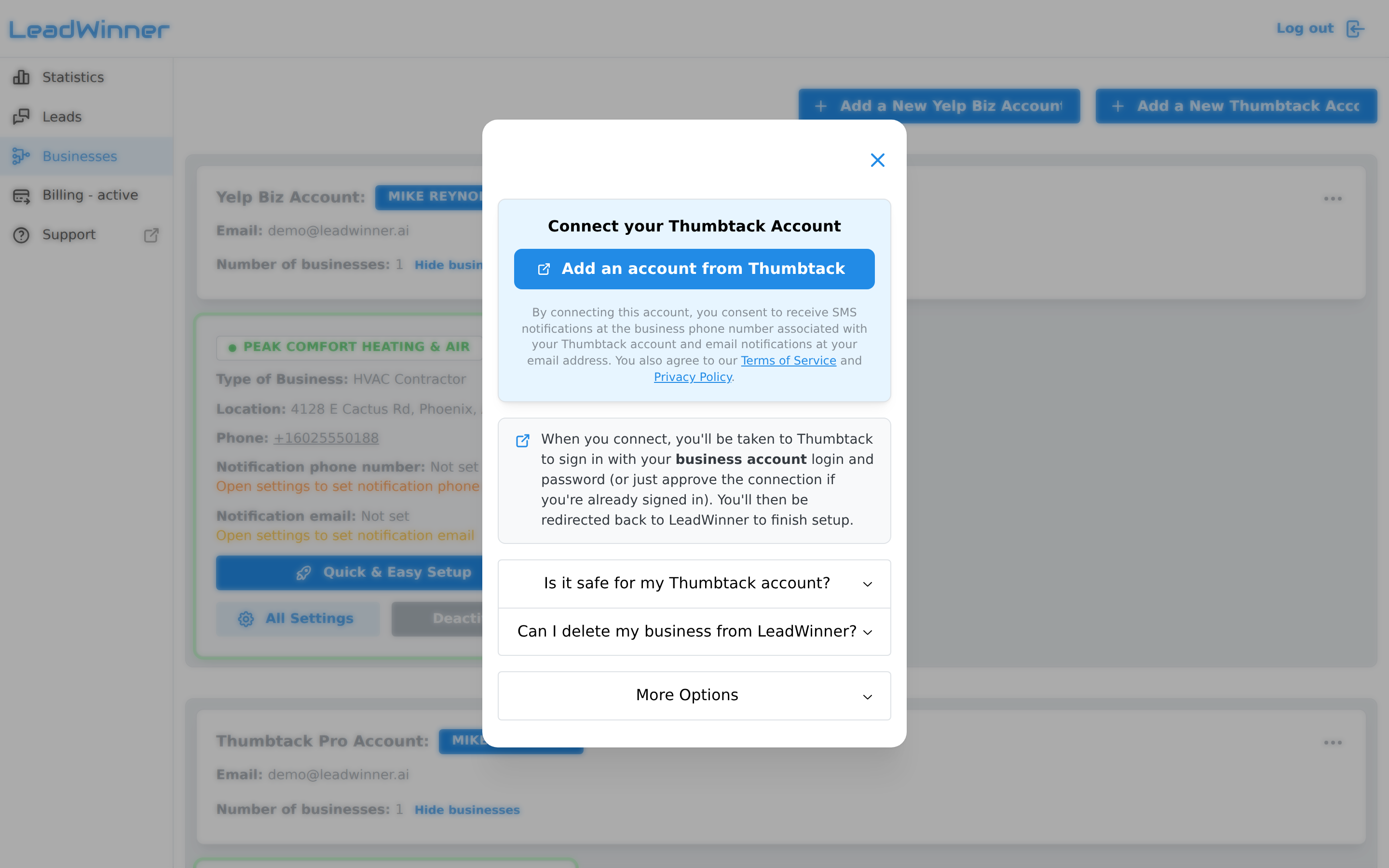
- A new tab opens on Thumbtack. Sign in with your Thumbtack Pro login (or just approve the connection if you’re already signed in).
- Approve the connection. Thumbtack redirects you back to LeadWinner, and a confirmation banner appears on the Businesses page.
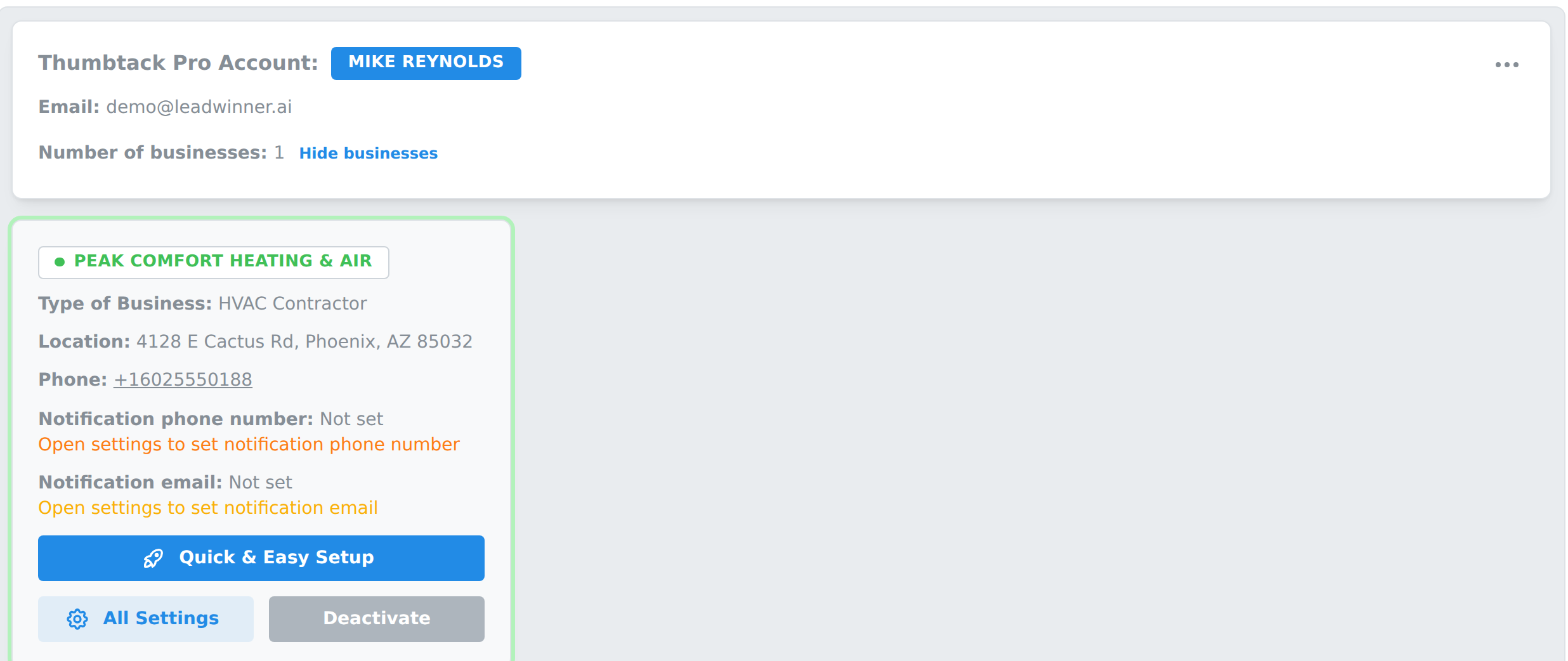
Your Thumbtack account now shows as a card on the Businesses page, with your business listed inside it.
What comes over from Thumbtack
- Leads — new customer requests, each with its conversation attached. They appear on your Leads page from the moment the connection is approved; requests that arrived before you connected aren’t imported.
- Earlier messages — if a tracked lead has history from before you connected, it shows inside the lead marked “Before LeadWinner.”
- Limited business details — Thumbtack sends only basic business information, so plan to fill in the rest yourself (see below).
Add your business details
Because Thumbtack sends limited business information, open your business card’s settings after connecting and fill in the Business Data tab — your business type, phone number, address, and hours. The AI uses this to answer customers accurately. If core details are missing, the business card shows a reminder to add them.
The account owner isn’t you?
In the connect window, expand “More Options” to reveal a shareable authorization link. Copy it and send it to the Thumbtack account owner — when they open the link and approve, the account connects to your LeadWinner workspace.
Is it safe for my Thumbtack account?
Yes. The connection uses Thumbtack’s secure authorization (OAuth): we never see your password, and access is limited to reading and replying to your leads. No connected account has ever been penalized, restricted, or suspended by Thumbtack for using LeadWinner. You can also remove a business from LeadWinner anytime, in a couple of clicks.
And if the connection ever drops, nothing is lost: your settings, leads, and conversation history stay in place — you just approve the connection again.
If something’s not working
- The authorization didn’t go through. Run the flow again from “Add a New Thumbtack Account”, and make sure you sign in with your Thumbtack Pro login — the account that receives your leads.
- A lead is on Thumbtack but not in LeadWinner. See A lead didn’t appear.
- Leads arrive, but the AI stays silent. Check that the business is activated and its details are filled in, then run The AI didn’t reply — checklist.
Next steps
- What happens after you connect — activate your business and finish setup.
Questions about connecting Thumbtack? Contact support — include your account email, and we’ll take a look.